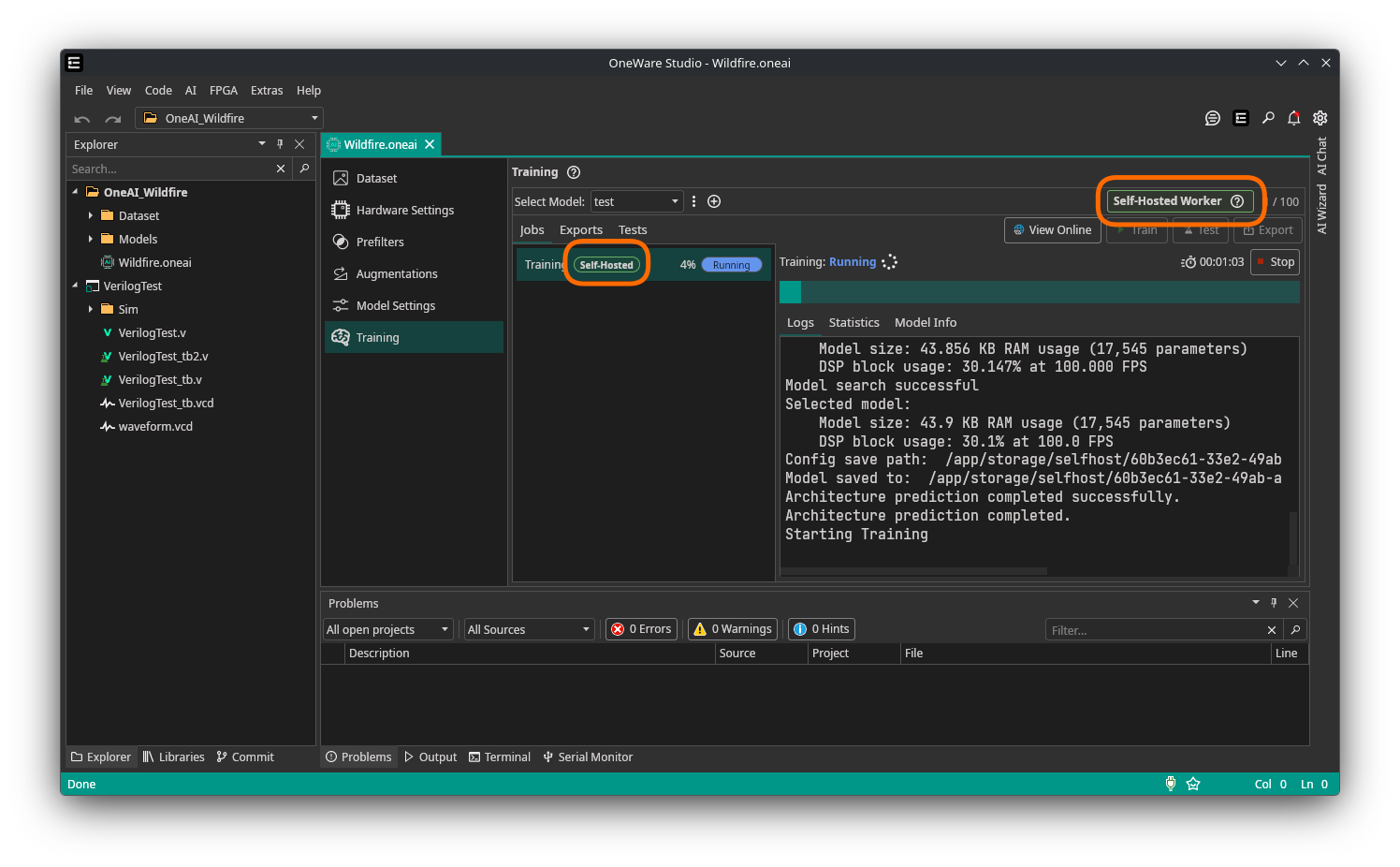
Self-Hosted ONE AI Worker
Self-hosted training must be enabled for your account before use. Contact us at support@one-ware.com or book a demo to get access.
What is the Self-Hosted ONE AI Worker?
Run ONE AI jobs on your own machine or server instead of on ONE WARE Cloud workers.
The self-hosted worker handles training, testing, visualization, and export locally. This way you can train on your own hardware while keeping your dataset private.
What stays local
- Datasets
- Training artifacts
- Test results
- Exported models
What is sent to ONE WARE Cloud
- Job metadata and status
- Logs for live monitoring
- Configuration required to create and track jobs
- Metadata needed for model architecture prediction
The worker must be able to reach https://cloud.one-ware.com while a job is running. If it cannot report status for about 5 minutes, the job is cancelled.
Requirements
- Docker or Podman
- An NVIDIA GPU for the recommended setup
- NVIDIA Container Toolkit configured for your container runtime
- Network access to
https://cloud.one-ware.com - Persistent storage if job data should survive restarts
The container already includes the required CUDA libraries. On the host, you only need a working NVIDIA driver and NVIDIA container runtime support.
Supported NVIDIA GPUs
CUDA architectures 3.5, 5.0, 6.0, 7.0, 7.5, 8.0, and newer are supported.
In practice, this includes most modern NVIDIA GPUs, for example:
- GeForce RTX 20, 30, 40, and 50 series
- NVIDIA T4
- NVIDIA A2, A10, A30, and A100
- NVIDIA L4, L40, L40S
- NVIDIA H100 and H200
If you are unsure, check your GPU's compute capability in NVIDIA's CUDA GPU list.
Setup
Step 1 — Generate your Docker token
The worker image is hosted on a private Azure Container Registry. You need a personal pull token to download it.
- Go to cloud.one-ware.com and sign in.
- Open Account → Self-Hosted Worker.
- Click Generate Token.
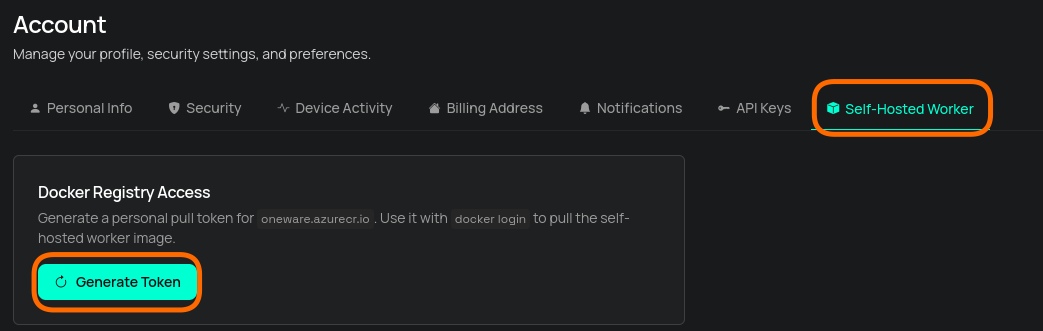
A docker login command with your personal credentials will be shown. Copy and run it:
docker login oneware.azurecr.io -u <username> -p <password>
Your token is valid for one year. You can regenerate it at any time from the same page — the old token will be invalidated immediately.
Step 2 — Pull the image
docker pull oneware.azurecr.io/oneware-worker-selfhost:latest
Step 3 — First Start
Use this when you want to run the worker in the foreground and watch the logs directly:
docker run \
  --name oneware-worker-selfhost \
  --gpus all \
  -p 127.0.0.1:5000:5000 \
  -v oneware-selfhost-data:/app/selfhost_projects \
  oneware.azurecr.io/oneware-worker-selfhost:latest
127.0.0.1: prefix-p 5000:5000 would bind the worker to every network interface. The
worker's API is not authenticated, so on a host with a public IP address that
exposes it to the internet. Bind it to localhost or to a private interface, and
see Self-Hosted Worker Security before
deploying to production.
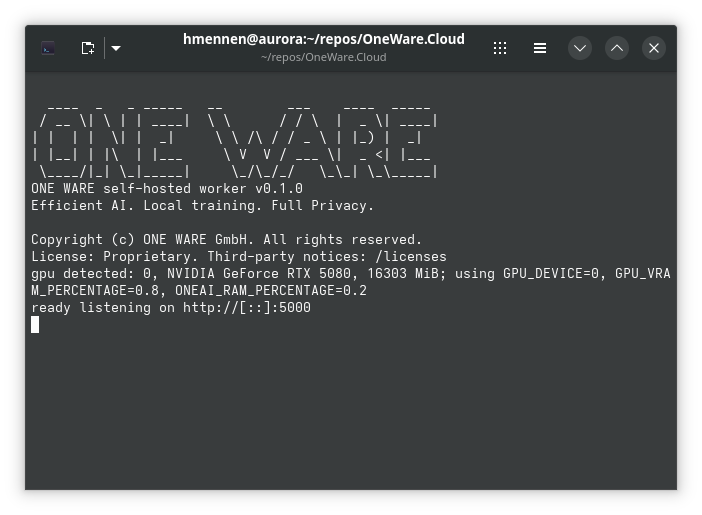
If everything is working correctly, the worker will detect the GPU and print it in the logs.
Docker Compose
It is recommended to use Docker Compose to keep the configuration in one place.
services:
  oneware-worker-selfhost:
    image: oneware.azurecr.io/oneware-worker-selfhost:latest
    container_name: oneware-worker-selfhost
    restart: unless-stopped
    ports:
      # Bind to a private interface only. Change 127.0.0.1 to the private
      # address the ONE AI extension reaches the worker on.
      - "127.0.0.1:5000:5000"
    volumes:
      - oneware-selfhost-data:/app/selfhost_projects
    cap_drop:
      - ALL
    security_opt:
      - no-new-privileges:true
    deploy:
      resources:
        reservations:
          devices:
            - driver: nvidia
              count: all
              capabilities: [gpu]

volumes:
  oneware-selfhost-data:
In this configuration, the worker API is exposed on port 5000 on the local
interface only.
Configuration
- Persistent job data:
/app/selfhost_projects - Temporary workspace:
/app/selfhost_workspace
Mount /app/selfhost_projects as a volume if uploads, models, exports, and test results should survive container restarts. The workspace directory is cleaned up automatically after jobs finish.
Runtime behavior
On startup, the worker checks whether an NVIDIA GPU is available.
If a GPU is found, the default limits are:
GPU_DEVICE=0GPU_VRAM_PERCENTAGE=0.9ONEAI_RAM_PERCENTAGE=0.5
If no GPU is available, the worker runs in CPU mode.
The worker processes one job at a time. Additional jobs wait in a queue.
Environment variables
These variables can be used to control which resources the worker uses. You can also enforce resource limits with Docker itself.
GPU_DEVICE: GPU index to useGPU_VRAM_PERCENTAGE: maximum VRAM usageONEAI_RAM_PERCENTAGE: maximum system RAM usage
Security
The worker's inbound API is not authenticated by design. It is a backend
component meant to run inside a network perimeter that you operate. Never expose
port 5000 to the public internet: restrict it with firewall rules, bind it to
a private interface, or place an authenticating reverse proxy in front of it.
The worker also has no tenant isolation — run one deployment per group of users who should not see each other's data.
→ Read Self-Hosted Worker Security before your first production deployment. It covers the division of responsibility between ONE WARE and you, required network placement, container hardening, data at rest, image pinning, updates and a deployment checklist.
Configure the ONE AI Extension
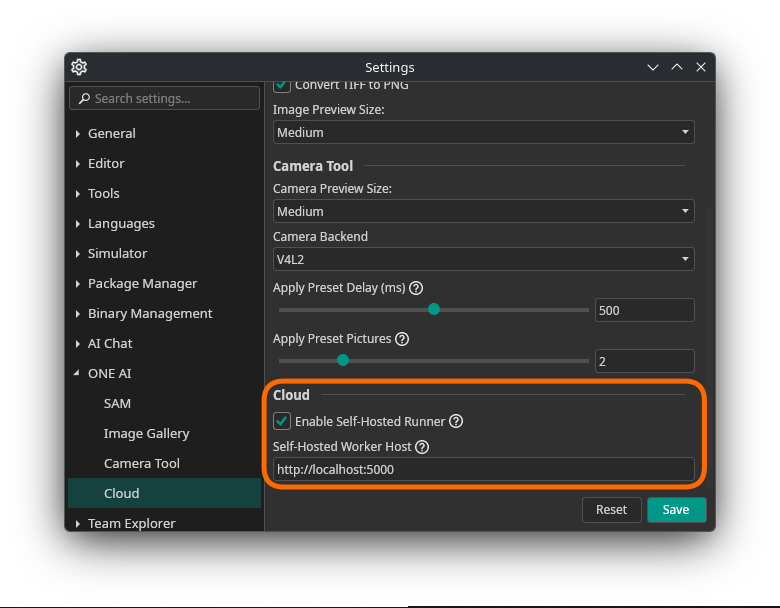
Set the self-hosted worker address to:
http://<host>:5000
Replace <host> with the machine name or IP address that the extension can reach.
The cloud page will now show indications that self-hosted mode is active and which jobs are running in that mode.