Write Your Own Plugin
A good understanding of C# and Avalonia is recommended. If you just want to add your own hardware support, you can do it without using C#
Prerequisites
- .NET 10.0 SDK
- C# Code Editor (JetBrains Rider recommended)
- Latest Version of OneWare Studio
Install the official templates (.NET 10)
dotnet new install OneWare.Templates
Create a new Plugin
The following command can create an extension from a template for you.
You can replace OneWare.MyExtension with your Extension name. To make integration with github pipelines easier, you can add -G YOUR_GITHUB_NAME using your GitHub name.
dotnet new oneware.extension -o OneWare.MyExtension
Run and Debug the Plugin
Using Rider (recommended)
Open the created template .sln file with Rider.
Once fully loaded, you can create a new run configuration in the edit Configurations menu.
You can use add Configuration and add a new configuration with the .NET Executable type.
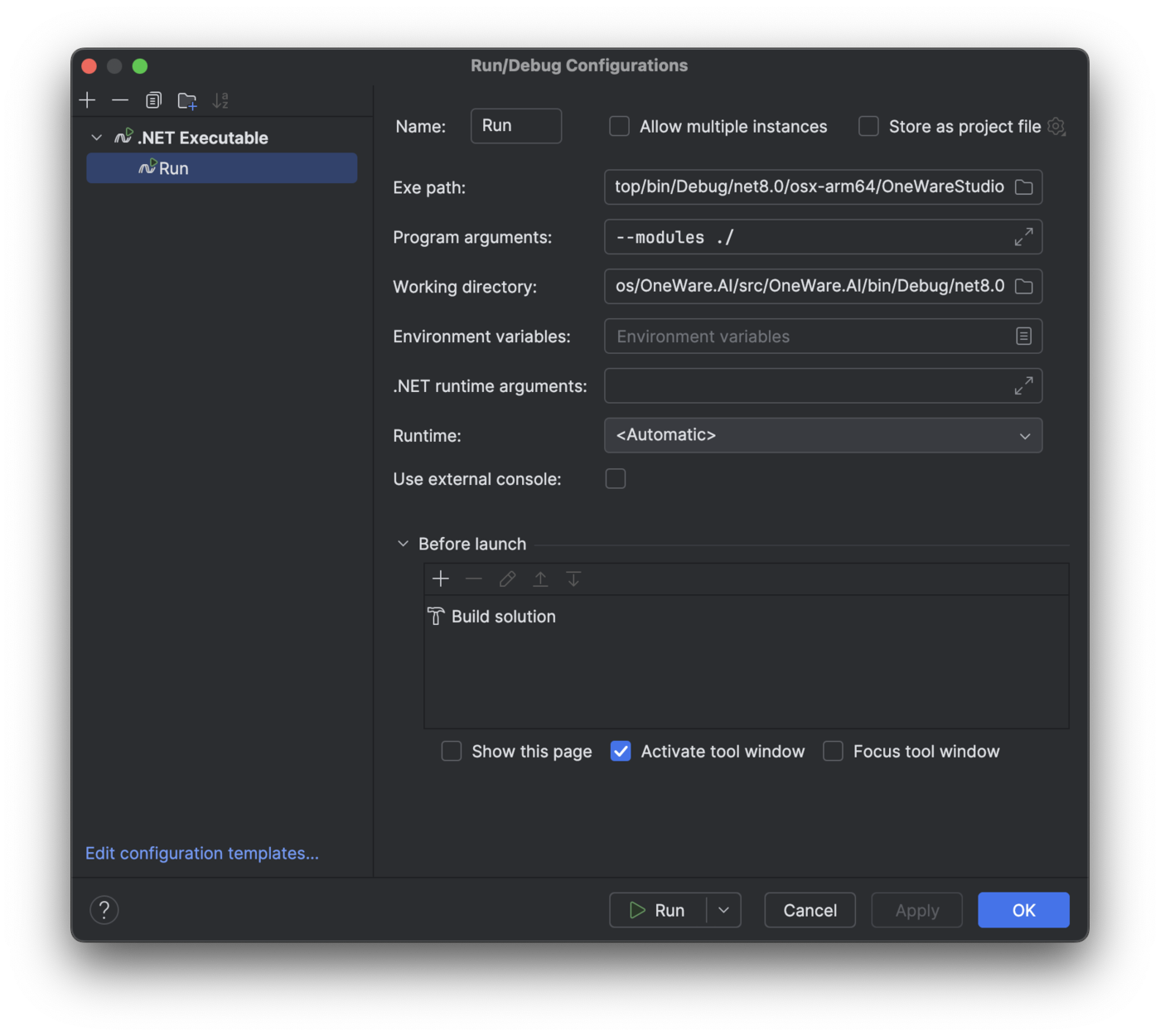
There you can set the path to your OneWareStudio Executable.
The Runtime arguments should be --modules ./, which means that you are pointing the module to be loaded to your working directory. For this to work, you finally need to set the working directory to your plugin folder and adding (/bin/Debug/net10.0) so that the working directory is the folder where your plugin gets compiled to.
If it works you can press on Run and should see that your plugin is loaded. This also allows debugging your plugin directly in Rider.
Using VSCode
1. Open the Project
- Launch VS Code
- Open the folder containing your plugin (e.g.,
OneWare.MyExtension)
2. Configure the Debugger
- In your root folder, create a
.vscodefolder if it doesn't exist. - Inside
.vscode, create a file calledlaunch.jsonand paste the following:
{
  "version": "0.2.0",
  "configurations": [
    {
      "name": "Run Plugin",
      "type": "coreclr",
      "request": "launch",
      "program": "<path-to-your-OneWareStudio-executable>",
      "args": ["--modules", "./"],
      "cwd": "${workspaceFolder}\\src\\OneWare.MyExtension\\bin\\Debug\\net10.0",
      "stopAtEntry": false,
      "env": {},
      "runtimeArgs": [],
      "console": "internalConsole"
    }
  ]
}
Replace
<path-to-your-OneWareStudio-executable>with the actual path to your OneWareStudio executable.
3. Add a Build Task
- In the same
.vscodefolder, create a file calledtasks.json:
{
  "version": "2.0.0",
  "tasks": [
    {
      "label": "Build Solution",
      "command": "dotnet",
      "type": "process",
      "args": [
        "build",
        "OneWare.MyExtension.sln",
        "--configuration",
        "Debug"
      ],
      "problemMatcher": "$msCompile",
      "group": {
        "kind": "build",
        "isDefault": true
      }
    }
  ]
}
4. Build and Debug
- Press
Ctrl + Shift + B(orCmd + Shift + Bon macOS) to build. - Open the Run and Debug view (
Ctrl + Shift + D). - Select Run Plugin from the dropdown and press
F5to start debugging.
You should now see your plugin loaded into OneWareStudio with full debugging support.
Plugin entry point
The entry point for your extension is a module class that derives from OneWareModuleBase. The module follows a two-phase lifecycle:
RegisterServices— Registers your types into the Microsoft DI container (called before the container is built)Initialize— Resolves services and registers menu items, settings, UI extensions, toolchains, etc.
using Microsoft.Extensions.DependencyInjection;
using OneWare.Essentials.Models;
using OneWare.Essentials.Services;

namespace OneWare.MyExtension;

public class MyExtensionModule : OneWareModuleBase
{
    // Optional: declare dependencies on other modules
    // public override IReadOnlyCollection<string> Dependencies => ["OneWare.UniversalFpgaProjectSystem"];

    public override void RegisterServices(IServiceCollection services)
    {
        // Register your own services for dependency injection
        // services.AddSingleton<IMyService, MyService>();
    }

    public override void Initialize(IServiceProvider serviceProvider)
    {
        // Resolve core services
        var windowService = serviceProvider.Resolve<IWindowService>();
        var settingsService = serviceProvider.Resolve<ISettingsService>();

        // Register a setting
        settingsService.RegisterSettingCategory("My Extension");
        settingsService.Register("MyExtension_EnableFeature", true);

        // Add a menu item
        windowService.RegisterMenuItem("MainWindow_MainMenu/View/Tool Windows",
            new MenuItemModel("MyTool")
            {
                Header = "My Tool Window",
                Command = new RelayCommand(() => { /* open tool */ })
            });
    }
}
Dependency management
Inside the .csproj file of your plugin, OneWare dependencies that are already included in the IDE are marked with Private="false" ExcludeAssets="runtime;Native". This ensures they are not copied to the plugin archive but are still available at compile time.
A compatibility.txt file is auto-generated during build to declare which host dependencies your plugin requires:
<Project Sdk="Microsoft.NET.Sdk">

    <PropertyGroup>
        <Version>1.0.0</Version>
        <TargetFramework>net10.0</TargetFramework>
        <ImplicitUsings>enable</ImplicitUsings>
        <Nullable>enable</Nullable>
        <EnableDynamicLoading>true</EnableDynamicLoading>
        <AvaloniaUseCompiledBindingsByDefault>true</AvaloniaUseCompiledBindingsByDefault>
        <SelfContained>false</SelfContained>
    </PropertyGroup>

    <ItemGroup>
        <AvaloniaResource Include="Assets\**\*.*" />
    </ItemGroup>

    <ItemGroup>
        <!-- Host dependencies: not bundled with plugin, resolved at runtime -->
        <PackageReference Include="OneWare.Essentials" Version="1.0.0" Private="false" ExcludeAssets="runtime;Native" />
        <PackageReference Include="OneWare.UniversalFpgaProjectSystem" Version="1.0.0" Private="false" ExcludeAssets="runtime;Native" />

        <!-- Plugin-specific dependencies: bundled with plugin -->
        <PackageReference Include="OxyPlot.Avalonia" Version="2.1.0-Avalonia11" Private="true" />
    </ItemGroup>

    <!-- Auto-generate compatibility.txt from Private="false" references -->
    <Target Name="GenerateCompatibilityFile" AfterTargets="Build">
        <ItemGroup>
            <FilteredDependencies Include="@(PackageReference)" Condition="'%(Private)' == 'false'" />
        </ItemGroup>
        <WriteLinesToFile
                File="$(OutDir)compatibility.txt"
                Lines="@(FilteredDependencies->'%(Identity) : %(Version)')"
                Overwrite="true" />
    </Target>

</Project>
The compatibility.txt output will look like:
OneWare.Essentials : 1.0.0
OneWare.UniversalFpgaProjectSystem : 1.0.0
This file is checked by the plugin loader to ensure your plugin is compatible with the installed version of ONE WARE Studio.
API Documentation
For the full plugin API reference — including all available services, interfaces, and extension points — see the Plugin API Reference.
Official extension examples:
- OneWare Quartus Extension
- OneWare GHDL Extension
- OneWare NetlistSVG Extension
- OneWare Studio Source Code — all built-in modules in
src/