Evaluate results
After training, you can evaluate your model's performance using the Test functionality. Testing runs the trained model against a set of images and provides metrics, visualizations, and diagnostics.
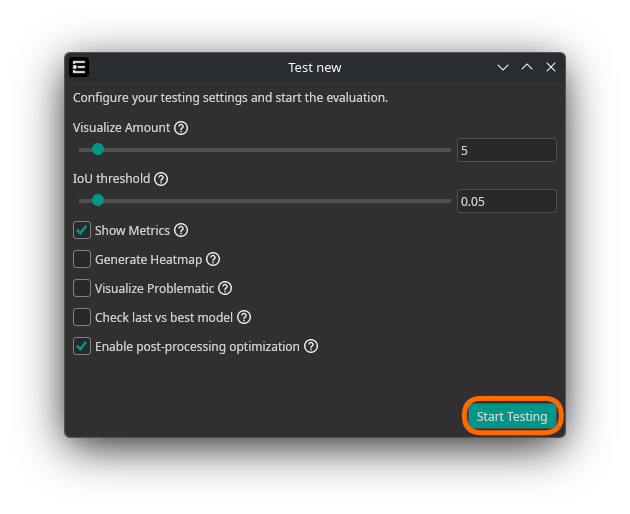
Data Sources
You can control which images are used for testing:
| Parameter | Default | Description |
|---|---|---|
| Train Image Percentage | 0% | Percentage of training images to include in testing. Useful when you have a limited dataset and want to see how the model performs on data it was trained on, or to get advanced metrics and visualizations. |
| Validation Image Percentage | 100% | Percentage of validation images to include in testing. Prioritize validation images to evaluate the model's ability to generalize to unseen data. |
| Validation/Test Split Percentage | 0% | Percentage of the validation dataset to reserve exclusively for testing (removed from validation during training). Use this with large datasets to ensure the model is evaluated on images it has never seen. Example: with a 30% validation split and 50% Validation/Test Split, 15% of the total dataset is used for testing and 15% for validation. |
Parameters
| Parameter | Description |
|---|---|
| Visualize Amount | Number of images to visualize during testing (1–100). Helps you quickly assess model performance on a subset of images. |
| IoU Threshold | Intersection over Union threshold for evaluating object detection performance (0.01–0.99). Lower values (e.g. 0.05) detect most objects even with imprecise bounding boxes. Higher values (e.g. 0.5) require precise localization. |
| Show Metrics (advanced) | Display detailed performance metrics after testing, including precision, recall, F1-score, and mAP. |
| Generate Heatmap (advanced) | Generate attention heatmaps that visualize where the model focused during detection. Helps understand the model's decision-making process and identify areas for improvement. |
| Visualize Problematic | Visualize images where the model struggled, such as false positives and false negatives. Guides further training or data collection efforts. |
| Check last vs best model (advanced) | Compares the last trained model with the best validation checkpoint. During training, two models are saved: the best validation model (without NMS post-processing) and the last trained model. This comparison determines which delivers better practical results with full post-processing. Useful for datasets prone to overfitting. |
| Enable post-processing optimization (advanced) | Test the model including pre- and postprocessing layers instead of only the trained neural network. Ensures consistent processing between training and inference and simplifies integration. |
Interpreting Results
After a test run completes, ONE WARE Studio displays:
- Performance metrics — precision, recall, F1-score, and mAP (when enabled)
- Visualized predictions — model outputs overlaid on test images
- Problematic images — false positives and false negatives highlighted for review
- Heatmaps — attention maps showing which image regions influenced predictions (when enabled)
Use these results to decide whether to deploy the model, adjust training settings, or collect additional training data.