Multi-Image
Multi-Image mode lets your custom AI model take several images as input at once, rather than analyzing them one at a time. This is ideal for tasks such as comparing images, combining information from multiple sources, or capturing an object from different angles or lighting conditions.
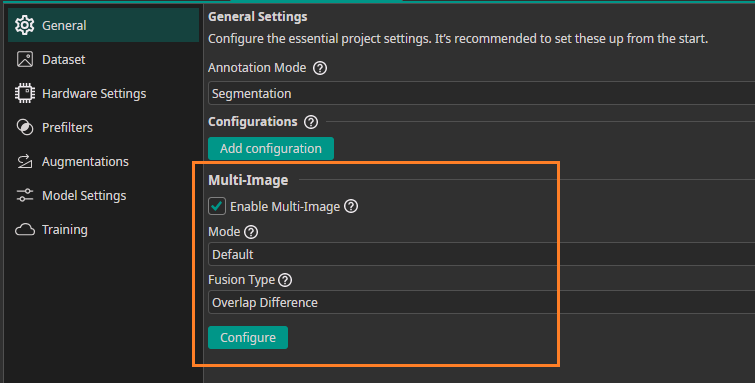
The Multi-Image settings are located on the General page.
Modes
| Mode | Use Case |
|---|---|
| Default | For different image types (e.g. RGB, depth) from a single position, or one image type from multiple positions (e.g. left, right), without custom comparison logic. |
| Advanced | For full control. Map image groups (e.g. left_RGB, left_depth) to types and positions, and customize how they are compared. |
Default mode
Choose a fusion type according to your requirements:
| Option | Use Case |
|---|---|
| Different Positions | Detect objects or the image class using multiple images taken from different directions. |
| Overlap Difference | Use when your template images for comparison are in the same position as the image being tested. |
| General Comparison | Use when your template images for comparison are in a different position than the image being tested. |
| Different Image Types | Combine multiple image types, such as RGB + depth, or images that differ significantly, for one prediction. |
Image Groups
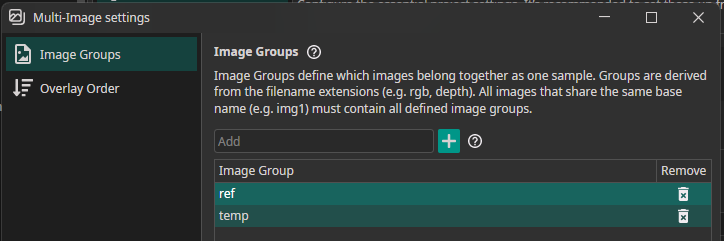
The resulting ONE AI model will be trained based on image sets, which are images grouped by their filename suffixes. Specify which images a set contains (e.g. left, top, bottom). The expected filename is {basename}_{groupName}.{extension}.
Example for image groups temp and ref:
- img-01_temp.png
- img-01_ref.png
- img-02_temp.png
- img-02_ref.png
- etc.
Overlay order
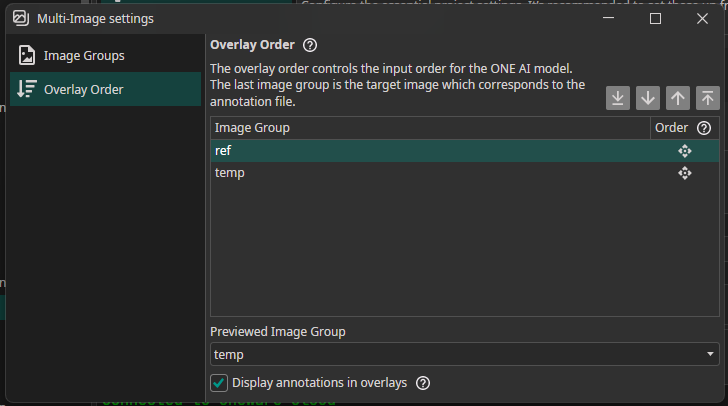
The overlay order is the order the ONE AI model expects the input data. The last image group is the one the annotation file corresponds to and will be therefore displayed by default in the Dataset tab.
Advanced mode
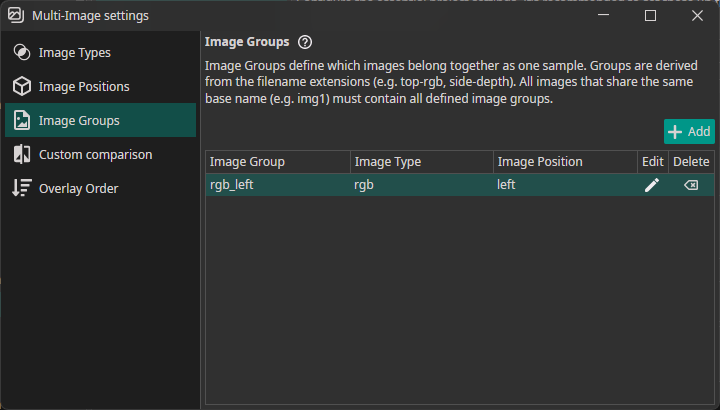
Click on the Configure button to adjust the multi image settings.
Image Types
Add your image types such as rgb, depth, thermal:
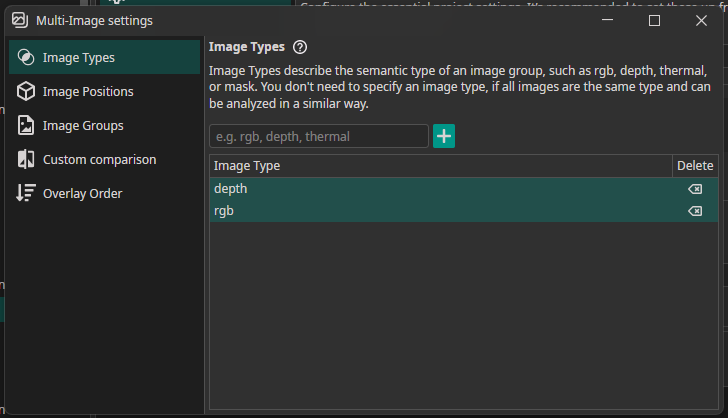
Image Positions
Add your image positions like top, left, right, cam01,:
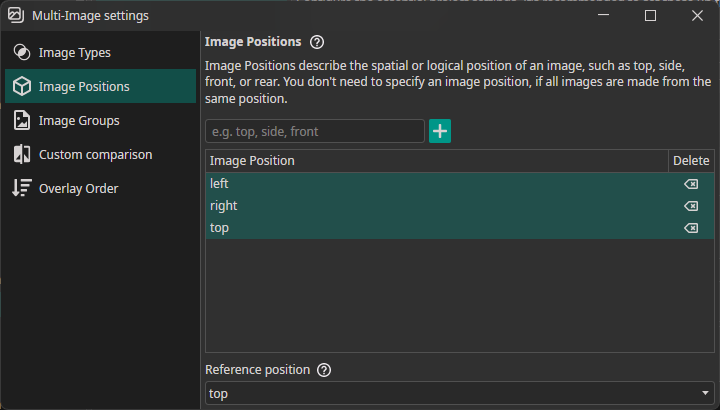
Image Group Mapping
This setting is the pendant to the default mode image groups with the difference, that each image group needs to be mapped to a type and/or position.